PowerShell: ConnectWise REST API Query Contacts by Email Address
Originally published on TechColumnist.
I’ve found myself at a new job, recreating many of the processes that I spent the last few years putting together, tweaking, modifying, building a new managed services provider with an exciting new company. One of those challenges lead me to Email parsing and ConnectWise (CW). Previously I had the opportunity to use Autotask and email2ticket, however with the modifications to the API that CW did a few years ago, email2ticket is no longer supported for CW. With my found love of Azure Functions and looking at existing mail based parsing tools (https://mailparser.io/, https://www.thinkautomation.com/) which have amazing feature sets, they didn’t do quite what I was looking for and to replace the functionality that I once had with email2ticket.
That is leading me to this PowerShell series for how to utilize the CW REST API and the things that took some understanding and digging in a little to determine how to do simple queries. The CW developer portal has some great resources, and I stumbled upon the forums that ultimately made it possible to finally build a wildcard query via PowerShell to identify whether a contact exists in CW.
Requirements
- PowerShell 5.1 or later, with
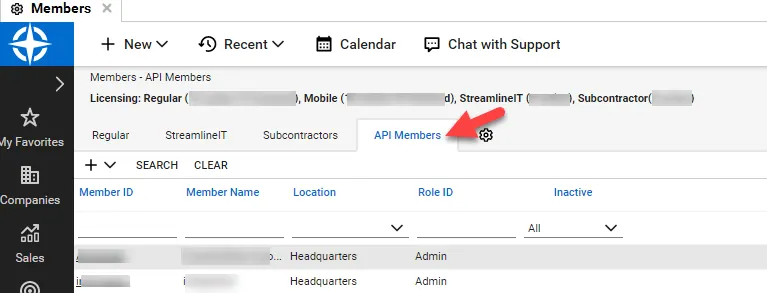
Invoke-RestMethod. - A CW API Access Account (an API member on the Members tab) with its public key, private key and your company identifier. First things first, you have to authenticate to the CW REST API, and you need access to the Admin Setup tables to create the account. The member's security role must be able to read contacts.
- An Azure Functions PowerShell function with an HTTP trigger binding. The script reads the
emailquery string parameter from$req_query_emailand writes its JSON response to the output binding file path in$res. - Outbound HTTPS from the function to your CW API host (
api-na.myconnectwise.netfor the North America cloud).
Parameters
| Name | Type | Required | Description |
|---|---|---|---|
email | string | Yes | Full or partial email address to search for, for example @xyz.corp for every contact in a domain. Passed in the query string and read from $req_query_email. |
$global:CWcompany | string | Yes | Value to edit: your CW company identifier, <company-id>. |
$global:CWprivate | string | Yes | Value to edit: the API member's private key, <private-key>. |
$global:CWpublic | string | Yes | Value to edit: the API member's public key, <public-key>. |
$global:CWserver | string | Yes | Value to edit: the base URL of your CW API host, for example https://api-na.myconnectwise.net. |
Walkthrough
Once you have an integration setup you can proceed with creating a PowerShell script to handle the automation. I build in Azure Functions mostly, so there will be some pieces in here that relate to that, I’ll breakdown each section (and eventually move some of these pieces to linked articles).
Authentication
Authentication to the CW rest API is fairly simple. It requires your public and private keys and your company identifier.
First set your variables for your credentials.
$global:CWcompany    = "<company-id>"
$global:CWprivate    = "<private-key>"
$global:CWpublic     = "<public-key>"
$global:CWserver     = "https://api-na.myconnectwise.net"
Second configure the authentication string and setup the standard headers for your GET request.
[string]$Accept      = "application/vnd.connectwise.com+json; version=3.0"
[string]$ContentType = 'application/json'
[string]$Authstring  = $CWcompany + '+' + $CWpublic + ':' + $CWprivate
$encodedAuth         = [Convert]::ToBase64String([Text.Encoding]::ASCII.GetBytes(($Authstring)))

$headers = New-Object "System.Collections.Generic.Dictionary[[String],[String]]"
$headers.Add("Authorization", "Basic $encodedAuth")
$headers.Add("Content-Type", 'application/json')
$headers.Add("Accept", $Accept)
Request URI
Then for the URI, this consists of a few parts, your base URL, your query parameters, and your target for your request.
Query String – this is the conditions you’re going to pass to do the lookup. In this case I’m looking for the email address of a contact. This requires the use of CW’s childconditions parameters. Initially the communicationItems is used to determine the value of the email address, then forcing it to only look for the type of email address to speed the query result. The “%” is used as the wildcard for the “like” operator. I spent some time trying to determine what would work best, contains and in both resulted in invalid syntax so using the like operator was the eventual conclusion.
[string]$query = '?childconditions=communicationItems/value like "%' + $email + '%" AND communicationItems/communicationType="Email"'
Putting it all together, you have a target of /company/contacts and use the query string. $email is the full or partial email address you’re searching for. Benefits of using a partial, such as @xyz.corp, would yield all contacts for that domain and you can use some logic there to determine what company they belong to (more to come on that subject).
[string]$TargetUri   = '/company/contacts'
[string]$query       = '?childconditions=communicationItems/value like "%' + $email + '%" AND communicationItems/communicationType="Email"'
[string]$BaseUri     = "$CWserver" + "/v4_6_release/apis/3.0" + $TargetUri + $query
Sending the request
Finally, send the Invoke-RestMethod command to get the results. This returns a JSON table that Invoke-RestMethod converts to a PS Object.
$JSONResponse = Invoke-RestMethod -Uri $BaseUri -Headers $headers -ContentType $ContentType -Method Get
Usage
Once the function is deployed, request it with the full or partial email address in the query string.
https://<function-app>.azurewebsites.net/api/<function-name>?email=<email>
The same call from PowerShell:
Invoke-RestMethod -Uri "https://<function-app>.azurewebsites.net/api/<function-name>?email=<email>" -Method Get
If the function's authorization level is not anonymous, add &code=<function-key> to the URL. A matching contact comes back in this shape:
{
    "id":  1234,
    "firstName":  "<first-name>",
    "lastName":  "<last-name>",
    "emails":  "<email>;",
    "company":  "<company-name>",
    "companyid":  56,
    "companyidentifier":  "<company-identifier>"
}
If nothing matches, the script returns $false and writes nothing to $res.
Script
Here’s the full code that I’m using to query for a specific contact’s email address.
<#
.SYNOPSIS
    Queries ConnectWise for contacts by full or partial email address.
.DESCRIPTION
    Runs as an Azure Functions PowerShell HTTP trigger. Reads the email address from the
    query string ($req_query_email), authenticates to the ConnectWise REST API with an API
    member's keys, searches /company/contacts with a wildcard "like" condition on the
    contact's email communication items, and writes the matching contacts (id, name,
    emails and company details) as JSON to the output binding file path in $res.
.PARAMETER email
    Full or partial email address to search for. Passed in the query string and read from $req_query_email.
.EXAMPLE
    Invoke-RestMethod -Uri "https://<function-app>.azurewebsites.net/api/<function-name>?email=<email>" -Method Get
.NOTES
    Author  : Thomas Lasswell (https://www.techcolumnist.com)
    Version : 1.1 (2026-09-20)
    History : 1.0 2018-12-27 Initial version.
              1.1 2026-09-20 The Accept header value no longer includes an "Accept: " prefix.
    Requires: PowerShell 5.1 or later; Azure Functions HTTP trigger ($req_query_email, $res); ConnectWise API member
.LINK
    https://developer.connectwise.com/products/manage/rest?a=Company&e=Contacts&o=GET
#>

# GET method: each querystring parameter is its own variable
if ($req_query_email) {
    $email = $req_query_email
}

# Initializations
$global:CWcompany    = "<company-id>"
$global:CWprivate    = "<private-key>"
$global:CWpublic     = "<public-key>"
$global:CWserver     = "https://api-na.myconnectwise.net"

# CW auth string
[string]$Accept      = "application/vnd.connectwise.com+json; version=3.0"
[string]$Authstring  = $CWcompany + '+' + $CWpublic + ':' + $CWprivate
[string]$ContentType = 'application/json'
$encodedAuth         = [Convert]::ToBase64String([Text.Encoding]::ASCII.GetBytes(($Authstring)))

# CW headers
$headers = New-Object "System.Collections.Generic.Dictionary[[String],[String]]"
$headers.Add("Authorization", "Basic $encodedAuth")
$headers.Add("Content-Type", 'application/json')
$headers.Add("Accept", $Accept)

# CW query
[string]$TargetUri   = '/company/contacts'
[string]$query       = '?childconditions=communicationItems/value like "%' + $email + '%" AND communicationItems/communicationType="Email"'
[string]$BaseUri     = "$CWserver" + "/v4_6_release/apis/3.0" + $TargetUri + $query

# Get response
$JSONResponse = Invoke-RestMethod -Uri $BaseUri -Headers $headers -ContentType $ContentType -Method Get

# Parse contact info to usable short table
$contactInfo = @()
foreach ($contact in $JSONResponse) {
    $email = $null
    $emails = $null
    $obj = New-Object PSObject
    $obj | Add-Member -MemberType NoteProperty -Name "id" -Value $contact.id
    $obj | Add-Member -MemberType NoteProperty -Name "firstName" -Value $contact.firstName
    $obj | Add-Member -MemberType NoteProperty -Name "lastName" -Value $contact.lastName
    foreach ($commtype in $contact.communicationItems) {
        $email = $($commtype | Where-Object { $_.communicationType -eq "Email" }).value
        if ($email.length -gt 2) {
            $emails += $email + ";"
        }
    }
    $obj | Add-Member -MemberType NoteProperty -Name "emails" -Value $emails
    $obj | Add-Member -MemberType NoteProperty -Name "company" -Value $contact.company.name
    $obj | Add-Member -MemberType NoteProperty -Name "companyid" -Value $contact.company.id
    $obj | Add-Member -MemberType NoteProperty -Name "companyidentifier" -Value $contact.company.identifier
    $contactInfo += $obj
}

if ($contactInfo) {
    Out-File -Encoding Ascii -FilePath $res -InputObject $($contactInfo | ConvertTo-Json)
} else {
    return $false
}
Notes
- Update 2026-09-20 (v1.1):
$Acceptused to be"Accept: application/vnd.connectwise.com+json; version=3.0", which put a secondAccept:inside the header value. It is now just the media type.
Keep reading
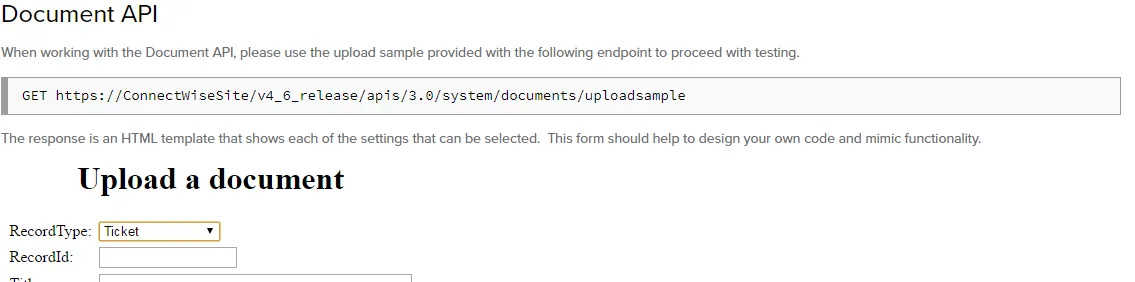
PowerShell: ConnectWise Documents API, Uploading a Document or Attachment to a Ticket
PowerShell: upload a document or attachment to a ConnectWise ticket through the form-based Documents API.
PowerShell: Autotask – Enable Client Portal for All Users
This is a quick one, it’s been forever since I’ve posted here. After moving back to Autotask, there’s still a ton of things to automate.
PowerShell: Get Exchange Mailboxes Over XXGB
Simple command turned crazy. I ended up coming up with this due to the fact we have duplicate display names and needed to update for Exchange Online to get mailbox sizes.